App for Zapier
Create payment links with Zapier
With the Buckaroo app for Zapier, you can create a payment link from any Zap. A submitted form, a new row in a spreadsheet or a customer in your CRM automatically becomes a payment request.
- No code needed
- No online store needed
- Technical support

No code, no online store
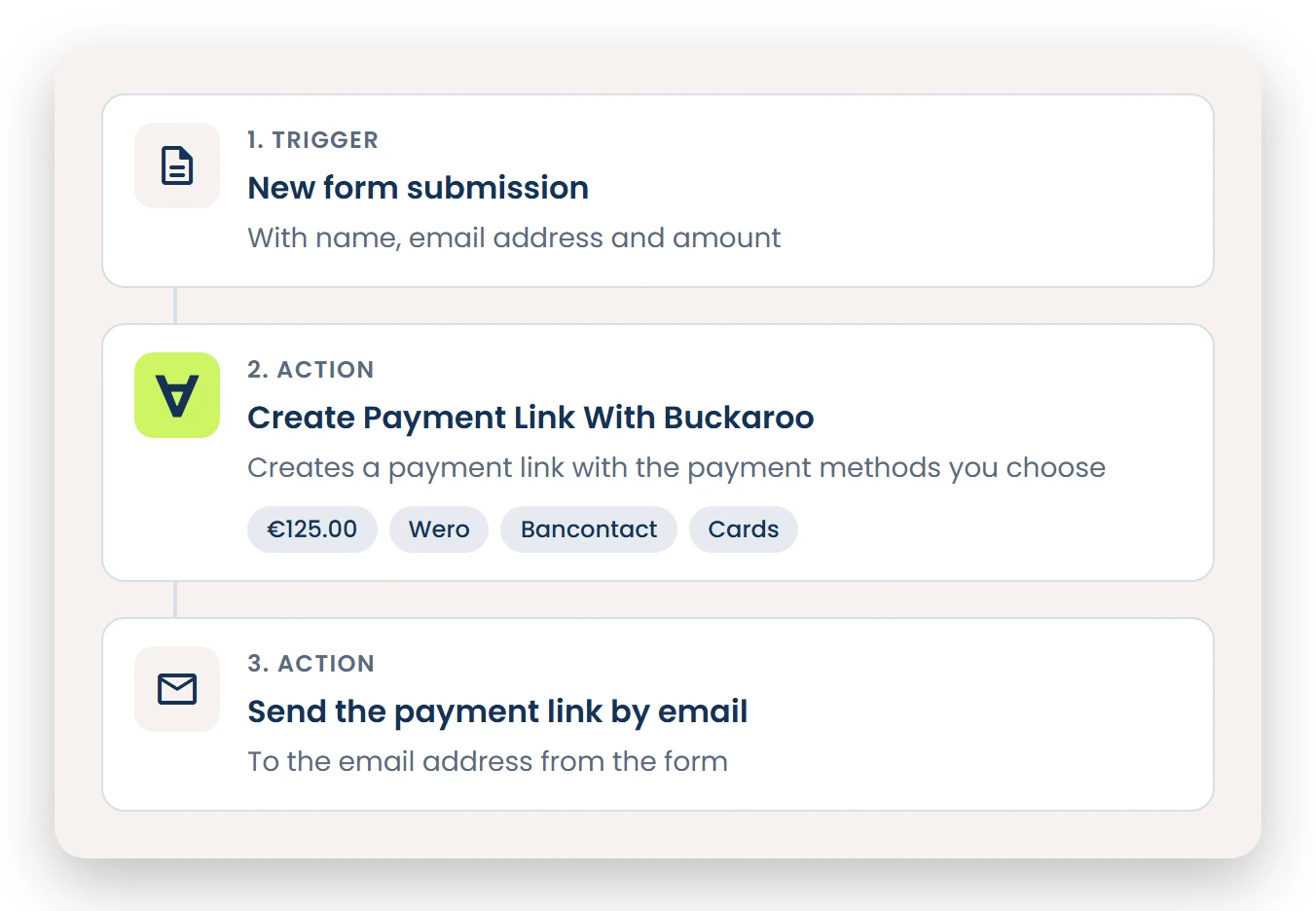
How a Zap with Buckaroo works
1
A trigger starts your Zap
For example, a submitted form, a new row in a spreadsheet or a new customer in your CRM.
2
Buckaroo creates a payment link
The Create Payment Link With Buckaroo action sends the amount, the currency and the allowed payment methods to Buckaroo.
3
The link goes to your customer
A next step in your Zap sends the payment link, for example by email.
4
Your customer pays
The link opens a Buckaroo payment page. Buckaroo sends the result as a push message to the Push URL you set.
What the app handles for you

Payment methods per Zap
Choose per action which payment methods your customer can use, from Wero and Bancontact to credit cards, Apple Pay and Paypal. Your customer picks one on the Buckaroo payment page.


No code, no online store
Do your orders come in through a form, a spreadsheet or your CRM? A Zap automatically turns them into a payment request.

Test safely first
Test mode is on by default. You first create links that don't collect real money, then switch it off once everything works.

Your own references
Your order and invoice numbers come back in the push message. That way you match every payment to what created it.

Act on the payment status
Use a second Zap with Zapier Webhooks to process the result, for example to mark a row as paid.
- Alipay
- American Express
- Apple Pay
- Bancontact
- Belfius
- Bizum
- Blik
- Boekenbon
- Carte Bancaire
- Carte Bleue
- Dankort
- EPS
- Fashion Cheque
- Fashion Giftcard
- iDEAL | Wero
- Klarna
- Maestro
- Mastercard
- MB WAY
- Multibanco
- Nationale Bioscoopbon
- Nexi
- Bank transfer
- Pay by Bank
- PayPal
- Postepay
- Przelewy24
- Swish
- Trustly
- Twint
- Visa
- Visa Electron
- VPay
- VVV Giftcard
- Webshop Giftcard
- WeChat Pay
- Wero
- YourGift Card
How to connect the app
1
Add Buckaroo to your Zap
Search for Buckaroo in Zapier and choose the Create Payment Link With Buckaroo action as a step in your Zap.
2
Connect your account
Connect Buckaroo with your Store key and Secret key. You'll find them in Buckaroo Plaza.
3
Set up the action and test
Choose the amount, the currency, the payment methods and your Push URL. Test in test mode and switch test mode off once everything works.
What do you need?
- A Buckaroo account
- A Zapier account with a plan that supports the apps you want to connect
- Your Store key and Secret key from Buckaroo Plaza
- At least one active payment method
Frequently asked questions
What exactly does the app create?
A payment link. You send the link to your customer, who chooses from the payment methods you allowed in the Zap on a Buckaroo payment page.
Do I need an online store?
No. Orders can also come in through a form, a spreadsheet or your CRM. A Zap turns them into a payment request.
Where do I find my Store key and Secret key?
Log in to your Buckaroo account. Under Settings → API Keys, you'll find the details you need to connect Buckaroo to Zapier.
Can I use the action from AI tools or code?
Yes. Zapier also offers the action through its MCP server and its SDK. Zapier provides and documents both.
Can a Zap start when a payment comes in?
Not directly. The app has an action but no triggers. Use a catch hook from Zapier Webhooks as your Push URL and use it to start a second Zap. Zapier Webhooks is included in Zapier's paid plans.
Can one payment link offer multiple payment methods?
Yes. You select one or more payment methods in the action. Your customer picks one on the Buckaroo payment page.
Can I refund or cancel from Zapier?
No. You handle refunds and cancellations in Buckaroo Plaza or through the Buckaroo API.
Why don't I see a payment method on the payment page?
A payment method only appears if it's active in your Buckaroo account and selected in the action. Also check that the method supports the currency you send.
Why am I not receiving a payment status?
The result is sent to the Push URL you enter in the action. You set this up yourself, for example with a catch hook from Zapier Webhooks or an endpoint on your own server.
Why isn't any real money being collected?
Test mode is probably still on. It's on by default. Turn it off once your Zap works the way you want.
Can't find your question?
Find all the answers in our documentation, or ask our technical support team.
Different platform?
Would you like to know more about this webshop plugin?
Our specialists are available to answer all your questions. Fill in the form and we will contact you as soon as possible.


