App for Lightspeed
Accept payments in your Lightspeed online store
Activate the Buckaroo Payments App from the Lightspeed App Store and offer your customers iDEAL | Wero, Bancontact, credit cards, Klarna, In3, Billink and more.
- Nothing to install on your own server
- Technical support

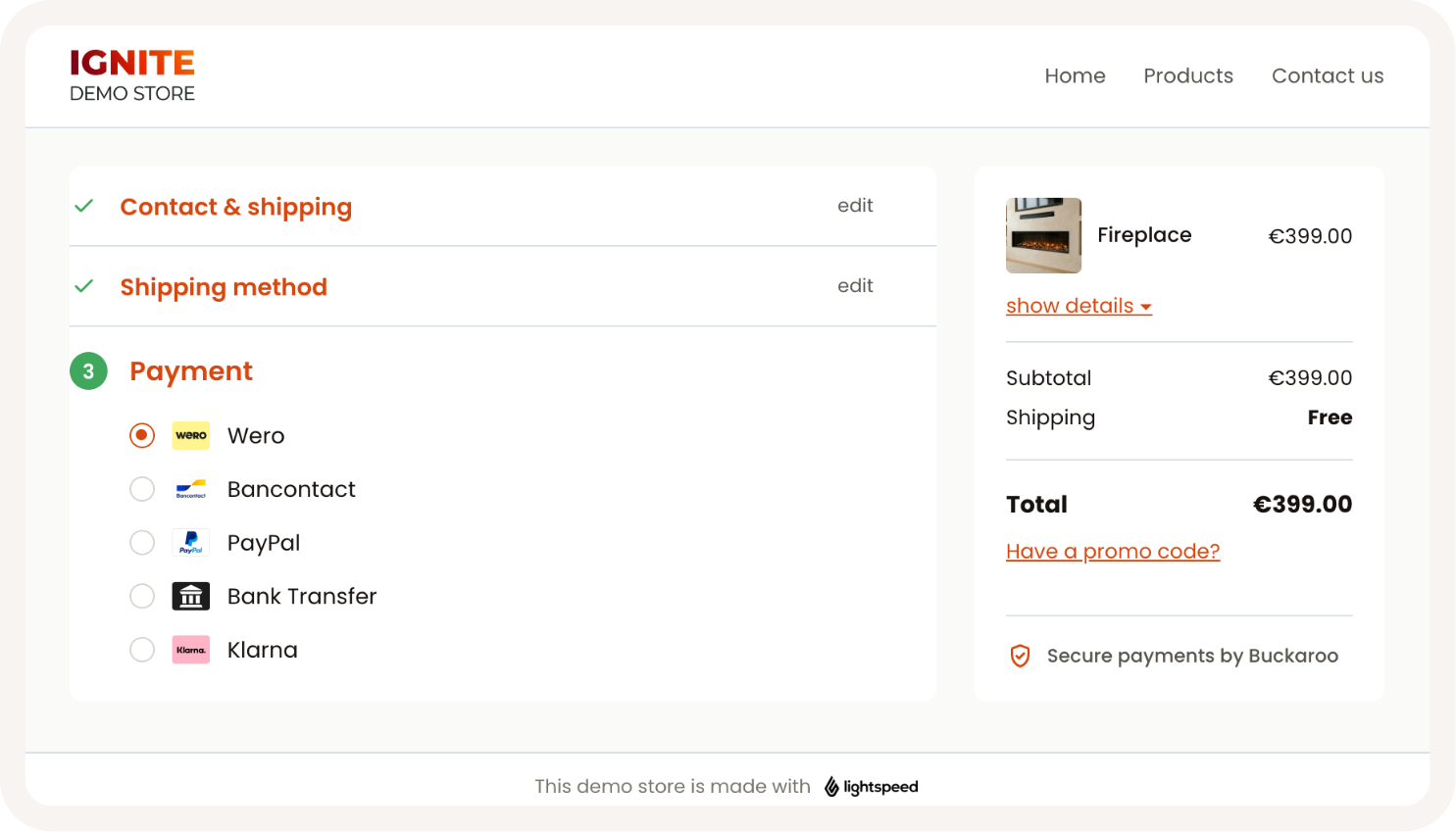
In your Lightspeed checkout
Familiar payments in your own checkout
Your customers see the Buckaroo payment methods as familiar options in the standard Lightspeed checkout, each with its own logo. You decide in the Buckaroo app which methods to show and how.
- Set each payment method to live, test or off
- Your own order per country
- Set a minimum and maximum order amount per payment method
What the app handles for you

All popular payment methods
Local and international methods in one app, from iDEAL | Wero and Bancontact to credit cards, Klarna and wallets. For customers in the Netherlands, Belgium and beyond.


Always the right order status
Buckaroo automatically updates the payment status of your orders in Lightspeed.

Refunds with a credit note
Create a credit note in Lightspeed and the refund runs through Buckaroo automatically.

Payment logos in your footer
Show which payment methods you offer automatically, with a single script.

Always the latest version
The app runs online, so you get updates and new payment methods automatically.
- Alipay
- Apple Pay
- Bancontact
- Belfius
- Billink
- Bizum
- Blik
- Credit and debit cards
- EPS
- Gift cards
- Google Pay
- iDEAL | Wero
- In3
- KBC
- Klarna
- MB WAY
- Multibanco
- Bank transfer
- Pay by Bank
- PayPal
- PayPerEmail
- Przelewy24
- Riverty
- SEPA Direct Debit
- Swish
- Trustly
- Twint
- WeChat Pay
- Wero
How to activate the app
1
Install the app
Install the Buckaroo Payments App from the Lightspeed App Store, or search for Buckaroo under Apps in your Lightspeed back office.
2
Grant access and sign up
Give the app access to your store and create an account at lightspeed.buckaroo.io.
3
Link your account and enable methods
Enter your Store key and Secret key under Settings and set your payment methods to live or test mode.
What do you need?
- A Buckaroo account
- A Lightspeed eCom store
- Multiple stores? A separate Store key for each store
Frequently asked questions
Does the app cost anything?
The app itself is free. Transactions are charged at the Pricing in your Buckaroo contract.
Do I need to install anything on my server?
No. You install the app from the Lightspeed App Store and manage the settings online at lightspeed.buckaroo.io.
Where do I find my Store key and Secret key?
Log in to your Buckaroo account. Under Settings → API Keys you'll find the details to enter in the app.
Can I test before going live?
Yes. Put the payment methods in test mode, make a few test payments, then switch to live.
How do I refund a customer?
Create a credit note in your Lightspeed back office. If automatic refunds are turned on in the app, the refund goes through Buckaroo automatically.
Can I change the name of a payment method?
Yes. In the app, you give each payment method the name your customers see at checkout.
How do I show payment logos in my footer?
Add the Buckaroo script under Settings → Web extras → Custom Head Code in your Lightspeed back office. The documentation explains how.
Why don't I see a payment method at checkout?
Check that the method is active in your Buckaroo account and set to live or test in the app. Then check the method's settings: the selected countries and the minimum and maximum amount hide a method without telling your customer.
I have multiple stores. What should I keep in mind?
During installation, select the right store in the top left of your Lightspeed back office. Each store gets its own Store key.
Can't find your question?
The documentation has all the answers, or you can ask our technical support.
Different platform?
Would you like to know more about this webshop plugin?
Our specialists are available to answer all your questions. Fill in the form and we will contact you as soon as possible.


