App for BigCommerce
Accept payments in your BigCommerce online store
Install the Buckaroo Payment Gateway from the BigCommerce Marketplace and offer your customers Wero, Bancontact, credit cards and more, across all your sales channels.
- Nothing to install on your own server
- Technical support

All in one app
Your payment methods under control
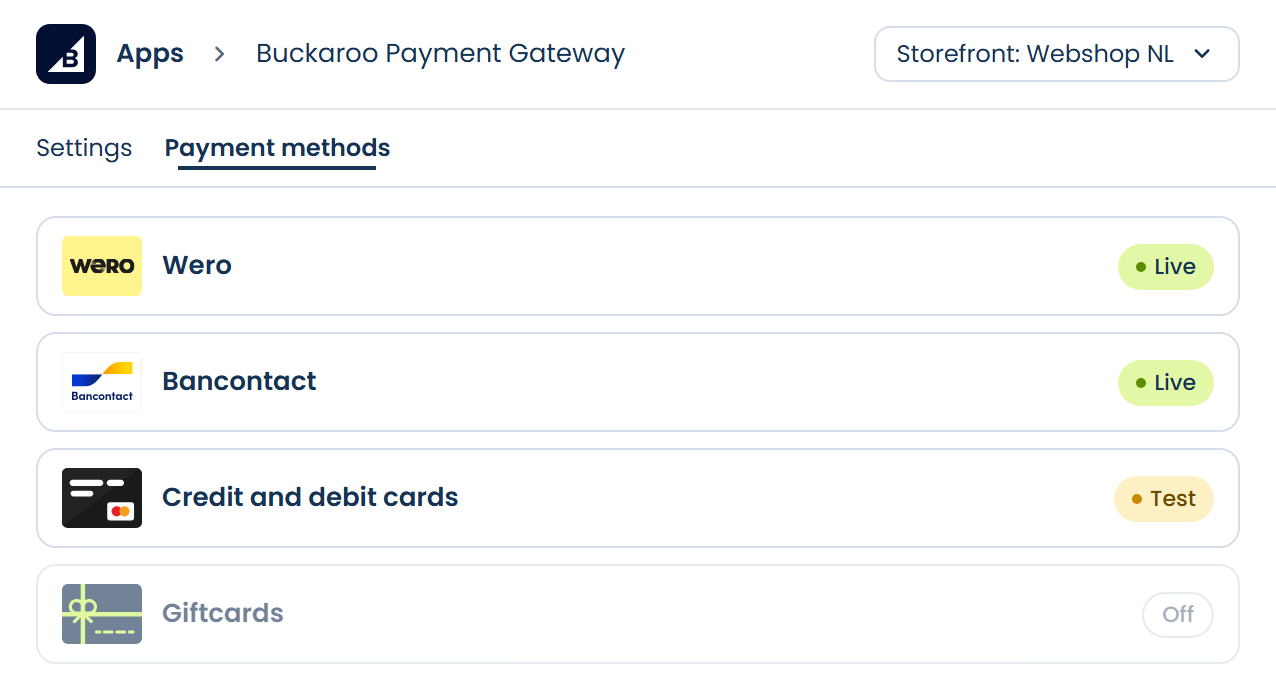
In the Buckaroo app, you manage the payment settings for all your BigCommerce channels in one place. No code and no server: just open the app and set it up.
- Set each payment method to live, test or off
- A separate set of payment methods for each storefront
- Choose the order of your payment methods
What the app handles for you

All popular payment methods
Local and international methods in one app, from Wero and Bancontact to credit cards. For customers in the Netherlands, Belgium and beyond.


Live, test or off per method
Set each payment method to live, test mode or off, one by one.

Configurable per storefront
Running multiple storefronts? Offer a separate set of payment methods on each one.

Set your own order
Decide the order in which your payment methods appear at checkout.

Custom checkout
Add your own JavaScript or CSS to your checkout and set your own return URLs.
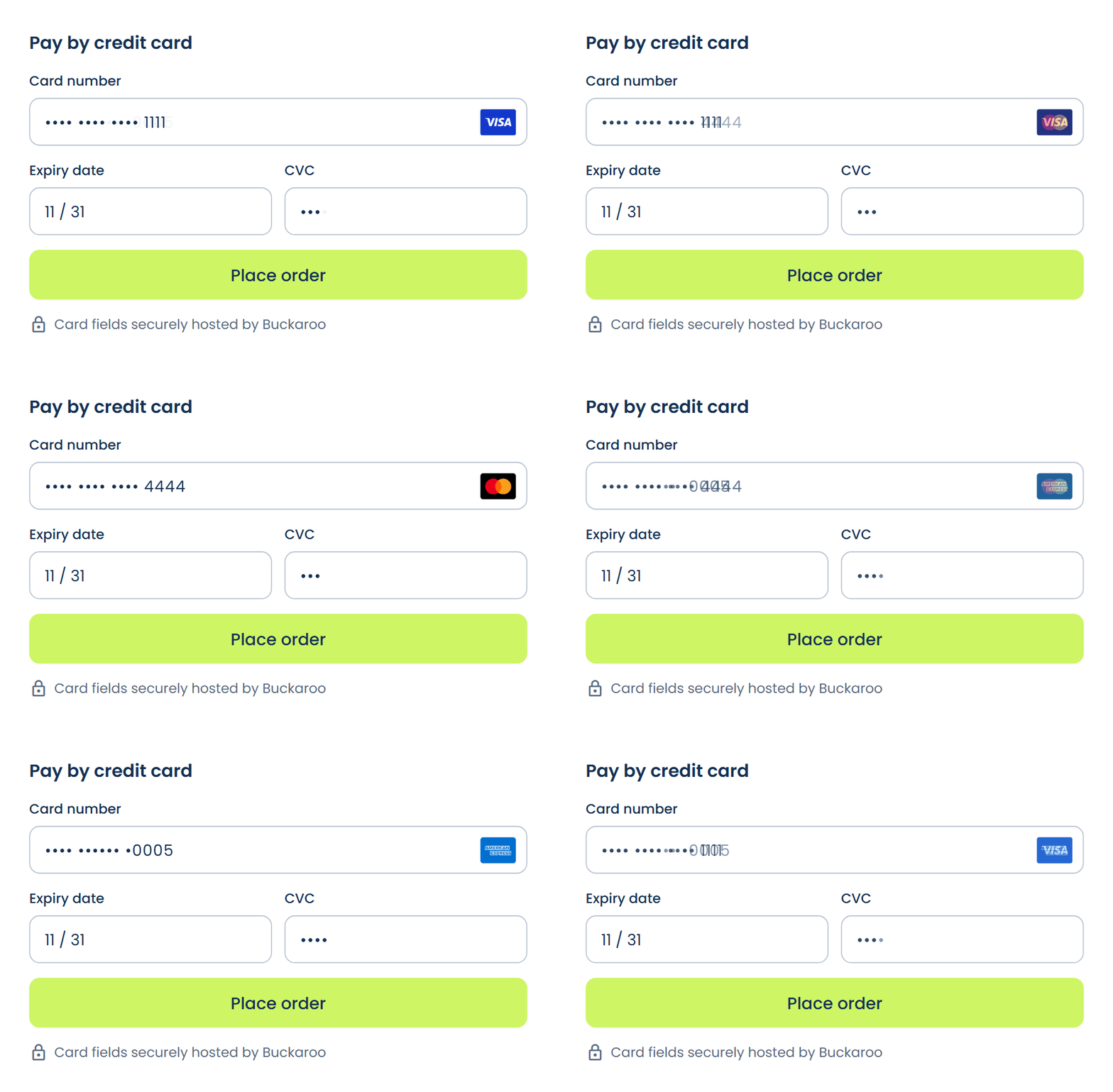
Hosted Fields
Card payments without detours
Your customers enter their card details securely on your own checkout. They aren't redirected to a separate payment page, so checking out is faster and smoother.
- Alipay
- American Express
- Apple Pay
- Bancontact
- Belfius
- Billink
- Bizum
- Carte Bleue
- Cartes Bancaires
- Credit Management
- Dankort
- EPS
- Gift cards
- Google Pay
- iDEAL | Wero
- In3
- KBC
- Klarna
- Maestro
- Mastercard
- Nexi
- Bank transfer
- Pay by Bank
- PayPal
- PayPerEmail
- Postepay
- Przelewy24
- Riverty
- Swish
- Trustly
- Twint
- Visa
- Visa Electron
- VPAY
- WeChat Pay
- Wero
How to activate the app
1
Install the app
Install the app from the BigCommerce Marketplace, or go to Apps → Marketplace in your BigCommerce control panel and search for Buckaroo.
2
Connect your account
Open the app via Apps → My Apps and enter your Store key and Secret key under General Settings. You'll find both in your Buckaroo account.
3
Turn on your payment methods
Set each payment method to test or live, and choose the order at checkout.
What do you need?
- A Buckaroo account
- An active BigCommerce online store
- An active subscription for each payment method
Frequently asked questions
Does the app cost anything?
The app itself is free. Transactions are charged at the Pricing in your Buckaroo contract.
Do I need to install anything on my server?
No. You install the app from the BigCommerce Marketplace and manage everything online.
Where do I find my Store key and Secret key?
Log in to your Buckaroo account. Under Settings → API Keys, you'll find the details to enter in the app.
Can I test before going live?
Yes. Put a payment method in test mode and make a few test payments. As long as a method is in test mode, you'll see a notice at the top of the page. Then switch the method to live.
Can I offer different payment methods per storefront?
Yes. You enable payment methods per storefront. The storefront you're working on is shown at the top of the menu in the app.
Can I authorize card payments first and capture them later?
Yes. For Credit and debit cards, you can separate authorization and capture. The payment is then authorized at checkout and you capture it later.
Can I set the order of payment methods?
Yes. In the app, you put the payment methods in the order they appear in your checkout.
Which card brands do I accept?
You choose this in the Credit and debit cards settings in the app. Make sure the card brands are also active in your Buckaroo account.
Why don't I see a payment method in my checkout?
Check that the method is active in your Buckaroo account and set to live or test in the app. Then check the countries and the minimum and maximum amount in the method's settings: these hide a method without notifying your customer.
My details aren't working. What now?
Often a space was copied along with the key. Copy your Store key and Secret key again from your Buckaroo account.
Where do I find the app after installation?
In your BigCommerce control panel, go to Apps → My Apps and open Buckaroo Payment Gateway.
Question not listed?
Find all the answers in the documentation, or ask our technical support.
Other platform?
Would you like to know more about this webshop plugin?
Our specialists are available to answer all your questions. Fill in the form and we will contact you as soon as possible.


