Plugin for Shopware 6
Accept payments in your Shopware online store
Install the Buckaroo plugin from the Shopware Store and offer your customers credit cards, iDEAL | Wero, Bancontact, Klarna, Billink, express checkout and more.
- Open source on GitHub
- Technical support

Express checkout
Checkout without forms
With native buttons for Apple Pay, Google Pay and PayPal Express, your customers pay straight from the product page, the cart or the checkout. Their address and payment details come from their wallet, so the order is placed in a few seconds.
- Built into your online store, no extra plugin needed
- Turn each button on or off in the plugin settings
- Ideal on mobile, where extra forms quickly cost you conversions
What the plugin handles for you

All popular payment methods
Local and international methods in one plugin, from credit cards and wallets to iDEAL | Wero, Bancontact and Klarna. For customers in Luxembourg, Belgium, the Netherlands and beyond.


Always the right order status
PUSH messages from Buckaroo update your orders in Shopware automatically.

Refunds from Shopware
Refund customers directly from the Shopware Administration, without logging in to your Buckaroo environment first.

Secure and up to date
Install new payment methods and security updates from the Shopware Administration.

Easy to set up
All settings are clearly laid out in your Shopware Administration. Turn payment methods on or off and you're ready to accept payments.
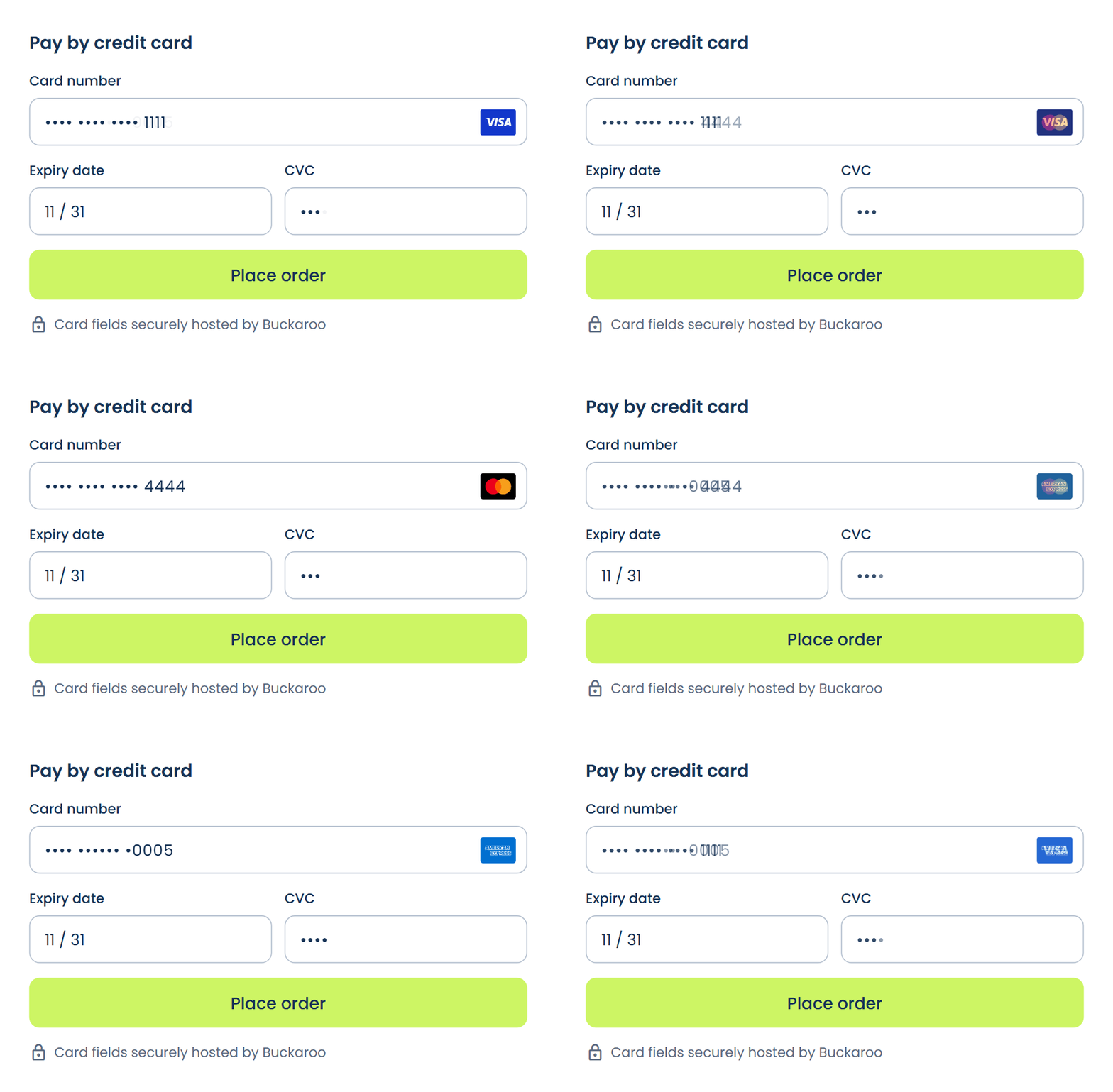
Hosted Fields
Card payments without a detour
Your customers enter their card details securely on your own checkout. They aren't redirected to a separate payment page, so checkout is faster and smoother.
- Alipay
- Apple Pay
- Bancontact
- Belfius
- Billink
- Bizum
- Blik
- Credit and debit cards
- EPS
- Gift cards
- Google Pay
- iDEAL | Wero
- iDEAL QR
- In3
- KBC
- Klarna
- MB WAY
- Multibanco
- Bank transfer
- Pay by Bank
- PayPal
- PayPerEmail
- Przelewy24
- Riverty
- SEPA Direct Debit
- Swish
- Trustly
- Twint
- WeChat Pay
- Wero
How to install the plugin
1
Install the plugin
Install the Buckaroo plugin from the Shopware Store, or search for Buckaroo in the Store from your Administration. Using Composer? Then you can also run composer require buckaroo/shopware6.
2
Connect your account
Enter your Store key and Secret key in the plugin configuration. You'll find them in your Buckaroo environment.
3
Turn on your payment methods
Test your checkout in test mode and switch the payment methods to live once everything works.
What do you need?
- A Buckaroo account
- A Shopware 6 online store
- A supported version of Shopware (see the documentation)

“We chose Buckaroo for their complete Shopware plugin and personal service. On top of that, they actively help us think about reaching our international goals.”
Nubikk, leather designer sneakers and boots
Industry: Fashion · Online stores: NL, EN, DE, ES and FR · Web partner: DutchDrops
Frequently asked questions
Does the plugin cost anything?
The plugin itself is free. Transactions are charged at the Pricing in your Buckaroo contract.
Which Shopware versions are supported?
You'll find the current list of supported versions in the installation guide.
Where do I find my Store key and Secret key?
Log in to your Buckaroo account. Under Settings → API Keys you'll find the details to enter in the plugin.
Can I test before going live?
Yes. A newly enabled payment method is in test mode by default. Make a few test payments, then switch the method to live. Until you do, no real payments come in.
How do I enable Apple Pay or PayPal Express?
In the plugin configuration, you choose which express buttons to show and where: on the product page, in the cart, or at checkout. You'll find all the steps in the express checkout documentation.
How do I refund a customer?
Open the order in the Shopware Administration and start the refund there. The refund is processed automatically through Buckaroo.
Can I capture payments on shipment?
Yes. For Riverty and Klarna, you can set the payment to be captured only when you ship the order. With Billink, you can have the invoice created after shipment.
Why don't I see a payment method at checkout?
Check that the method is active in your Buckaroo account and in the plugin, and that the payment method has been added to your sales channel. A method can also be hidden if the currency, the customer's country, or the order amount doesn't match that method.
Why does an order's payment status stay on “Open”?
Usually the status update from Buckaroo (the PUSH message) isn't arriving. Check whether a firewall or maintenance mode is blocking messages from Buckaroo. The documentation explains how to fix this.
How do I keep the plugin up to date?
Update the plugin in the Administration under Extensions → My extensions, or with composer update buckaroo/shopware6. Install updates as soon as possible, so you also get the latest security fixes and payment methods.
Can't find your question?
You'll find all the answers in the documentation, or you can ask our technical support team.
Different platform?
Would you like to know more about this webshop plugin?
Our specialists are available to answer all your questions. Fill in the form and we will contact you as soon as possible.
