Apps for Shopify
Accept payments in your Shopify store
Install the Buckaroo apps for the payment methods you want to offer and accept credit cards, iDEAL | Wero, Bancontact and more in your Shopify checkout.
- Nothing to install on your own server
- Technical support

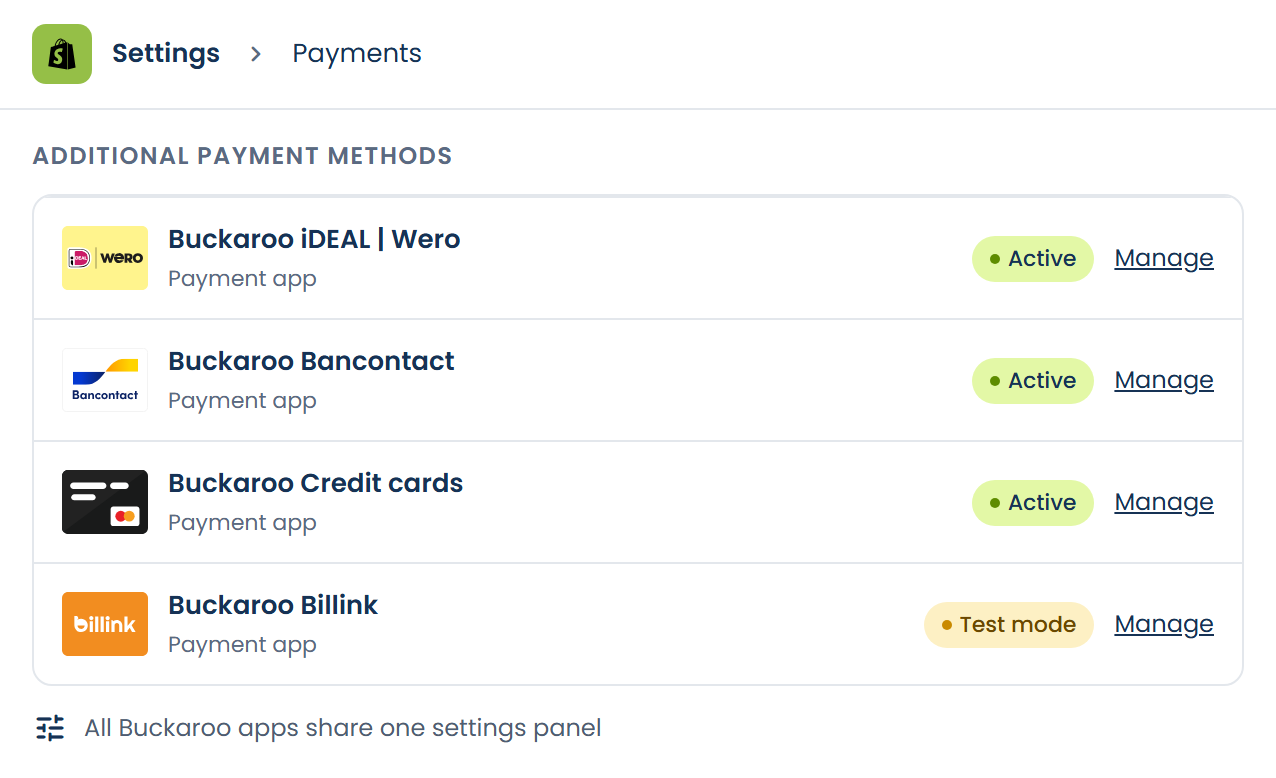
One app per payment method
Choose exactly the methods you want
Shopify uses a separate payment app for each payment method. You install only what you need, then manage everything in one Buckaroo settings panel.
- Enter your details once
- Turn each payment method on, off or to test mode
- Multiple Shopify stores from one panel
What the apps handle for you

All popular payment methods
Local and international methods with one Buckaroo account, from credit cards to iDEAL | Wero, Bancontact, In3 and Billink. For customers in the Netherlands, Belgium and beyond.


Refunds from Shopify
Issue full or partial refunds from the order in your Shopify admin.

Multiple stores, one panel
Manage all your Shopify stores from the same Buckaroo panel, each with its own Store key.

Multiple currencies
The apps support Shopify stores that sell in multiple currencies.

Always the latest version
The apps run online, so you get updates automatically.











How to activate the apps
1
Install the apps
Install the Buckaroo app for each payment method you want to offer.
2
Connect your account
Go to Settings → Payments, choose a Buckaroo app and open More actions → Manage. Enter your Store key and Secret key and click Test Connection.
3
Activate your payment methods
Turn on each payment method under Settings → Payments. You can start in test mode first.
What do you need?
- A Buckaroo account
- A Shopify store
- A separate Store key for each Shopify store
Frequently asked questions
How do I add payment methods to Shopify?
Install the Buckaroo app for each payment method from the Shopify App Store, for example the Buckaroo app for iDEAL | Wero for customers from the Netherlands, and connect it with your Store key and Secret key. Then turn on the payment method under Settings → Payments. You can start in test mode first.
Why is there a separate app for each payment method?
Shopify treats each payment method as a separate payment app. All Buckaroo apps share one settings panel, so you only enter your details once.
Where do I find the Buckaroo settings?
In your Shopify admin, go to Settings → Payments, choose an installed Buckaroo app and open More actions → Manage.
Where do I find my Store key and Secret key?
Log in to your Buckaroo account. Under Settings → API Keys you will find the details to enter in the panel.
Are there any costs for the apps?
The apps themselves are free. For transactions through the Shopify apps, we charge 0.35% per transaction, on top of the standard transaction fees for each payment method in your plan.
How do I refund a customer?
Start the refund from the order in your Shopify admin, with the original payment as the refund method. You can refund the full amount or part of it.
Do the apps support multiple currencies?
Yes. The Buckaroo apps also work in Shopify stores that sell in multiple currencies.
Can I use the apps for subscriptions or in Shopify POS?
No. The apps are built for the online checkout. Recurring payments and subscriptions are not supported.
Test Connection fails. What now?
Usually a space was copied along with the key, or the key belongs to a different Buckaroo store. Copy your Store key and Secret key again from your Buckaroo account.
I have multiple Shopify stores. What should I watch out for?
Select the right store via Select Store at the top left of the panel, and use a separate Store key for each store. Otherwise all transactions end up under one Buckaroo store.
Why don't I see a payment method in my checkout?
Check that the app is installed and turned on under Settings → Payments, and that the payment method is active in your Buckaroo account.
Question not listed?
Find all the answers in the documentation, or ask our technical support.
Different platform?
Would you like to know more about this webshop plugin?
Our specialists are available to answer all your questions. Fill in the form and we will contact you as soon as possible.
