App for Ecwid
Accept payments in your Ecwid online store
Install the Buckaroo Payments App in your Ecwid store and offer your customers credit cards, Apple Pay, Google Pay, iDEAL | Wero, Bancontact and more.
- Nothing to install on your own server
- Technical support

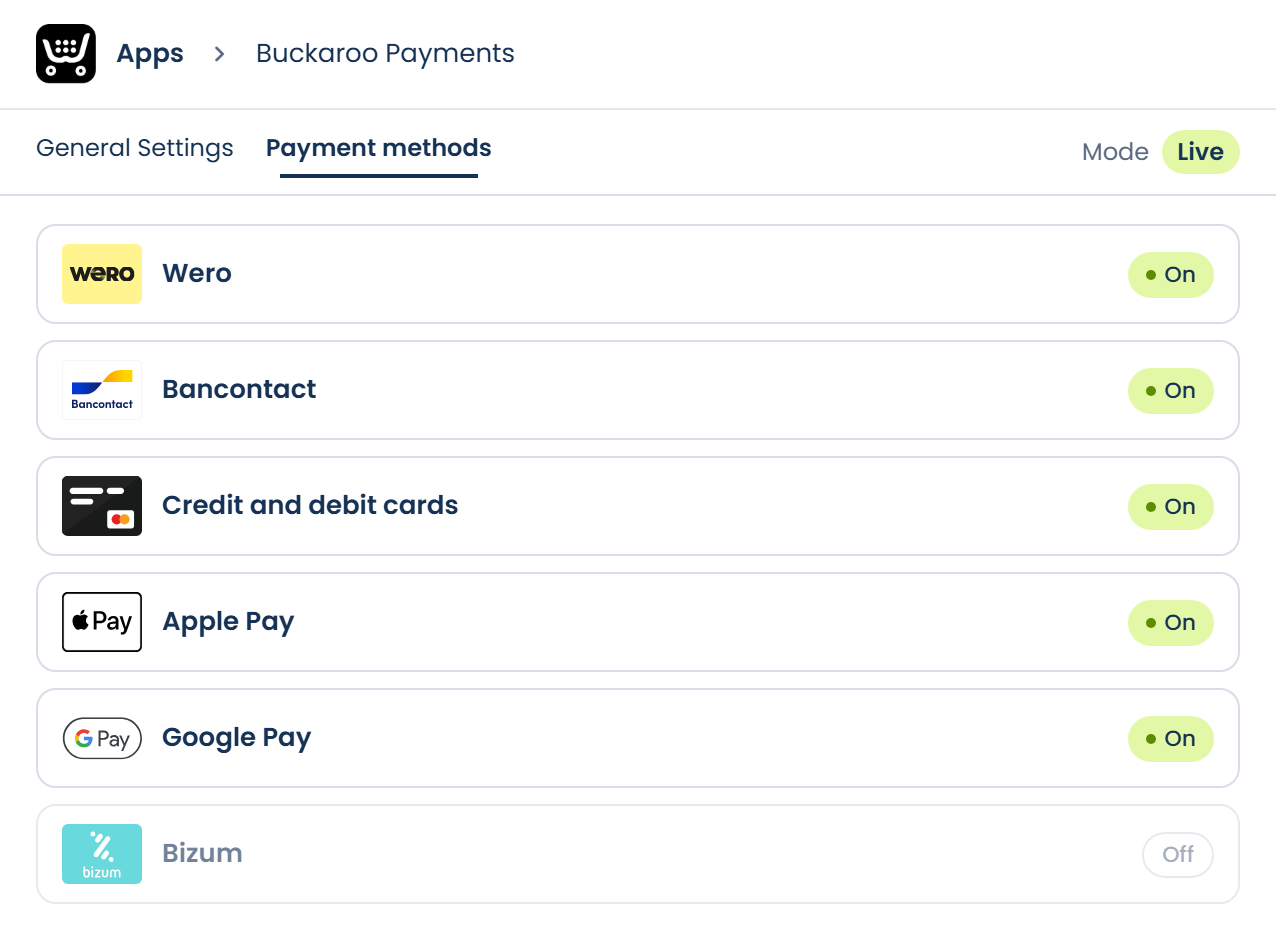
All in one app
Your payment methods under control
In the Buckaroo app, you manage all payment settings for your Ecwid store in one place. No code and no server: just open it and set it up.
- Turn each payment method on or off separately
- Test your entire online store in a sandbox first
- A recognizable description on the bank statement
What the app handles for you

All popular payment methods
Local and international methods in one app, from credit cards, Apple Pay, Google Pay and PayPal to iDEAL | Wero and Bancontact. For customers in Luxembourg, Belgium, the Netherlands and beyond.


Always the right order status
Buckaroo automatically updates the payment status of your orders in Ecwid.

Turn each method on or off
Turn each payment method on or off separately. Switch between test and live for your entire online store in one step.

Recognizable on the statement
Set the description your customers see on their bank statement yourself, for example with the order number and the name of your online store.

Always the latest version
The app runs online, so you get updates and new payment methods automatically.
- Alipay
- Apple Pay
- Bancontact
- Belfius
- Bizum
- Blik
- Credit and debit cards
- EPS
- Gift cards
- Google Pay
- iDEAL | Wero
- KBC
- MB WAY
- Multibanco
- Bank transfer
- Pay by Bank
- PayPal
- Przelewy24
- Swish
- Trustly
- Twint
- WeChat Pay
- Wero
How to activate the app
1
Install the app
Install the Buckaroo Payments App from the Ecwid App Market. You will then find it in your Ecwid admin under Apps → My Apps.
2
Connect your account
Open the app, go to General Settings and enter your Store key and Secret key. You can find them in your Buckaroo account.
3
Turn on your payment methods
Turn on the payment methods you want to offer, test with Mode set to Test, then switch Mode to Live.
What do you need?
- A Buckaroo account
- An Ecwid store
- An active subscription for each payment method
Frequently asked questions
Does the app cost anything?
The app itself is free. Transactions are charged at the Pricing in your Buckaroo contract.
Do I need to install anything on my server?
No. You install the app from the Ecwid App Market and manage everything in your Ecwid admin under Apps → My Apps.
Where do I find my Store key and Secret key?
Log in to your Buckaroo account. Under Settings → API Keys, you'll find the details to enter in the app.
Can I test before going live?
Yes. Set Mode to Test in the settings. At checkout, you're sent to a sandbox environment where you can run through different test scenarios. When you're done, set Mode to Live.
Can I put a single payment method in test mode?
No. You turn payment methods on or off individually, but test or live mode applies to your entire online store. You set it with Mode in the settings.
Which card brands do I accept?
You choose this in the app under Credit and debit cards. At checkout, your customer selects credit card and then picks the card brand on the Buckaroo payment page.
What do my customers see on their bank statement?
The description you set in the app. Include your order number and the name of your online store, for example, so customers recognize the payment.
How do customers pay with Apple Pay or Google Pay?
Customers select Apple Pay or Google Pay in your checkout, just like any other payment method. They then complete the payment on the Buckaroo payment page.
Why don't I see a payment method in my checkout?
Check that the method is active in your Buckaroo account and enabled in the app. A method can also be hidden if the customer's currency or country doesn't match that method.
Where do I find the app after installation?
In your Ecwid admin, go to Apps → My Apps and open Buckaroo Payments.
Can't find your question?
The documentation has all the answers, or you can ask our technical support team.
Other platform?
Would you like to know more about this webshop plugin?
Our specialists are available to answer all your questions. Fill in the form and we will contact you as soon as possible.
